BASIC Mode ( Recommended )
From the main menu select SURVEY
NOTE: The KNOT mode of Mnemo v1 has been removed
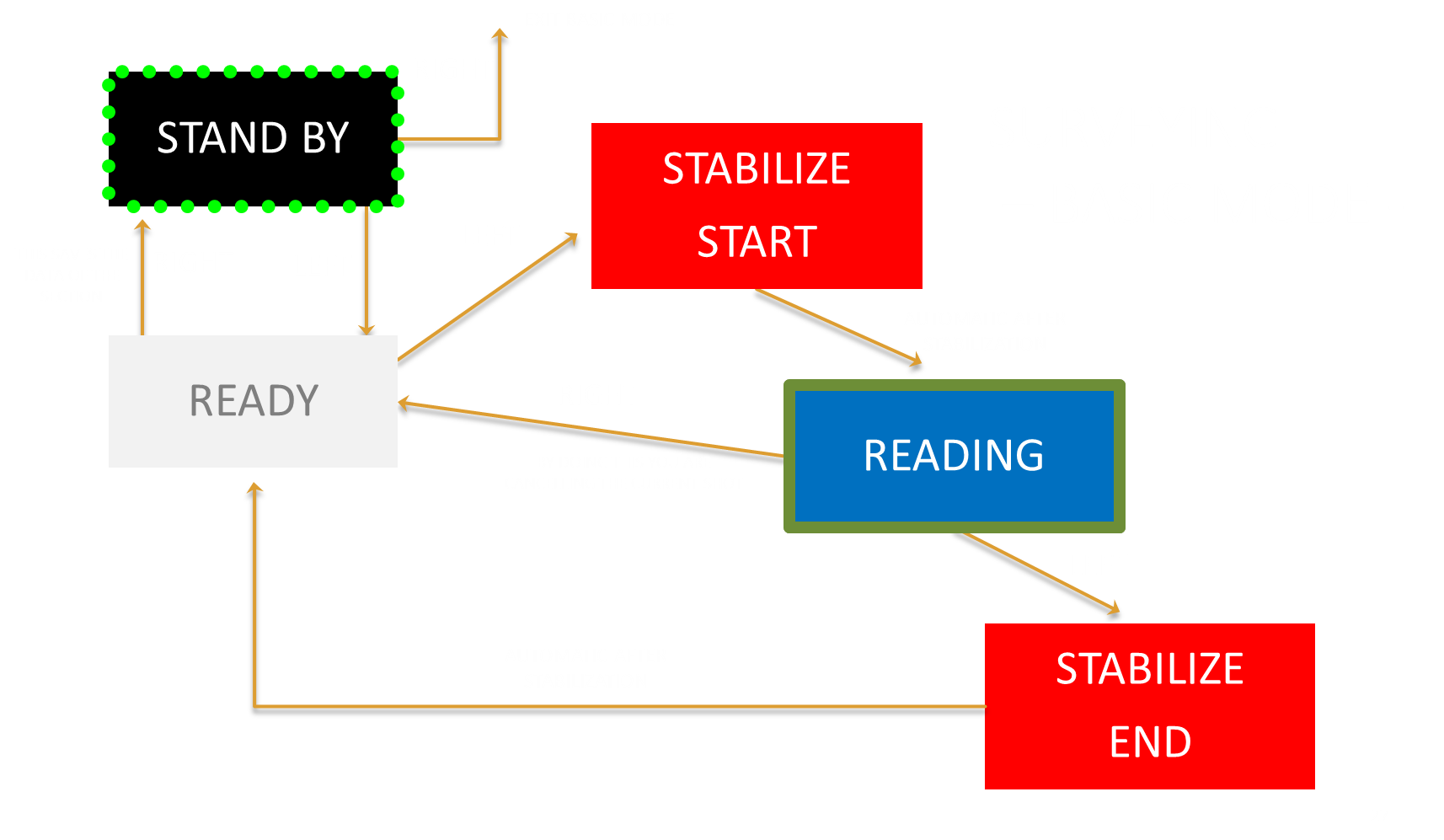
You’ll notice a flashing green screen displaying STANDBY or an icon as well as the direction selected for the survey ( IN is default but it can be changed using a click command)

You can select in OPTIONS > SETTINGS > UI(ICON or TEXT) if you wish to have the text or the icon displayed in each phase of the survey
From now on you don´t need to be able to read what’s displayed on the screen. The color alone will give you information on which phase of the survey you are in.
In BASIC mode the slider button doesn’t work by impulses, you’ll have to hold the slider during a certain amount of time ( more or less 2s) to give and validate a SELECT or NEXT command. A red progress bar on the top screen will show the progress, the command only gets validated once the progress bar is complete.

You can adjust the amount of time required to validate a command in the Setting section of MnemoLink
- From STANDBY mode, to start a section hold the slider left the screen turns WHITE, this indicates READY mode.

By default, in any BASIC survey mode all surveys are recorded IN and are named “BAS”. You can then later sort out the data on your favorite survey software.
- Clip the device on the line at the beginning of the first shot.
- Hold the slider left the background turns RED, you are in STABILIZE mode ( same as in Verbose survey mode).

- Once stabilized, the device goes in READING mode, you can now move along the line, you’ll recognize the flickering BLUE/VIOLET square you already had in Verbose survey mode indicating the wheel is measuring the line

- Once you reach the end of the shot hold the slider left again, the background turns RED, you are in STABILIZE mode.
- Once stabilized the background becomes white again, you are back in READY mode.

- You can repeat the operation for the following shots.
The curve icon you can see in the last picture indicates that the measurement of the azimuth at the start and the end of the shot has a difference of more than 5 degrees. The exact difference is displayed over the curve ( In the example we have 7deg of difference)
You might also find this icon which signals the change in depth is bigger than the length of the line. This usually happens on very steep shots.


Once you have finished the section, when you are in READY mode, to save the section move the cursor to the right. This will save the data and put the device back in STANDBY mode ( Blinking GREEN).
To exit BASIC survey mode, from the STANDBY mode, hold the cursor to the right during 3s.
BASIC Mode Overview